Standard Group Analytics
Looking for Hierarchical Groups? If your product has a B2B company → user relationship, see Hierarchical Groups instead.
Standard Group Analytics lets you establish event properties other than distinct_id as identifiers by which to analyze your data. By defining group keys — such as company_id, account_id, project_id, or billing_id — you can count uniques, build funnels, and measure retention at the group level rather than (or alongside) the individual user level.
Overview
By default, Mixpanel counts unique users by distinct_id. Group Analytics lets you count uniques by an alternative identifier — one shared by a set of individuals with different distinct_id values. For example, if five users share the same company_id, a “unique companies” count for an event those five users all performed would return 1, not 5.
Single Level Identity
Each group key you define is independent. Mixpanel does not assume any relationship between group keys or between groups and users. distinct_id is determined based on a single key:
User Level:
distinct_id = <user_id>Note: user level distinct_id actually follows the rules for how distinct_id is set based on your identity management system. As a result the above may not always be true if user_id is not yet defined or if you are using orginal ID merge or a non ID merge project.
Group Level:
distinct_id = <group_id>You can define up to 5 group keys per project, and events can carry values for multiple group ids and keys simultaneously.
How Analysis Works
When analyzing by Group Mixpanel counts uniques by group_id values while User level analysis uses user_id values for uniqueness. There is no hard coded relationship between groups and user in the distinct_id. As such users can technically exist in multiple groups but still be counted as a single user at the User level.
Limits
The limits below ensure standard group analytics works correctly in Mixpanel:
- 1M group profiles per group key (e.g. company_id)
- 1M events per day per group identifier (e.g. company_id = “Mixpanel”) - see Hot Shard Limits
- Group properties have similar limits as User properties
- This add-on supports up to 3 group keys. Enterprise Plans can increase this to 6 for an additional fee.
Prerequisites
Standard Groups only functions on data ingested after group keys are set up. You must have the groups package enabled on the account and group keys defined in Project Settings before events will start showing up in Groups. Standard groups are not retroactive meaning any data ingested into Mixpanel prior to setting up the group keys will not be assoiciated with your groups even if that information already have group key and id set on it.
Data Model
Events
For an event to be attributed to a group, the event must include the group key as an event property with the group ID as its value. Without the group key property on the event, Mixpanel cannot attribute that event to a group.
{
  "event": "Purchase",
  "properties": {
    "distinct_id": "user_123",
    "time": 1690000000,
    "company_id": "acme_corp",
    "team_id": "engineering",
    "amount": 99.99
  }
}
In this example, if company_id and team_id are both registered as group keys, this event will be attributed to the acme_corp company group and the engineering team group.
Group Profiles
Group profiles are key-value stores of metadata about a specific group. They are identified by the combination of group_key and group_id.
{
  "$group_key": "company_id",
  "$group_id": "acme_corp",
  "$set": {
    "$name": "Acme Corporation",
    "plan": "enterprise",
    "industry": "Technology",
    "employee_count": 500
  }
}
Identity Management
Standard Group Analytics does not change how distinct_id or user identity works. Users are still identified by distinct_id as normal. Group keys provide an additional, independent axis for counting uniques — they do not replace or modify user identity. It is not possible to merge different group ids together.
Implementation
Standard Groups can be implemented using Mixpanel’s SDK methods in addition to Data Warehouse Connectors and HTTP APIs directly.
Group Keys in Project Settings
Group keys are project-specific, and must be set up before data is sent. To administer group keys, navigate to your Project Settings. Click +Add Group Key under the Group Keys section.
- Navigate to your Project Settings (requires project owner or admin permissions)
- Click +Add Group Key under the Group Keys section
- Fill in the details on the group key (the exact name as data will be ingested) and the display name that will appear in Mixpanel
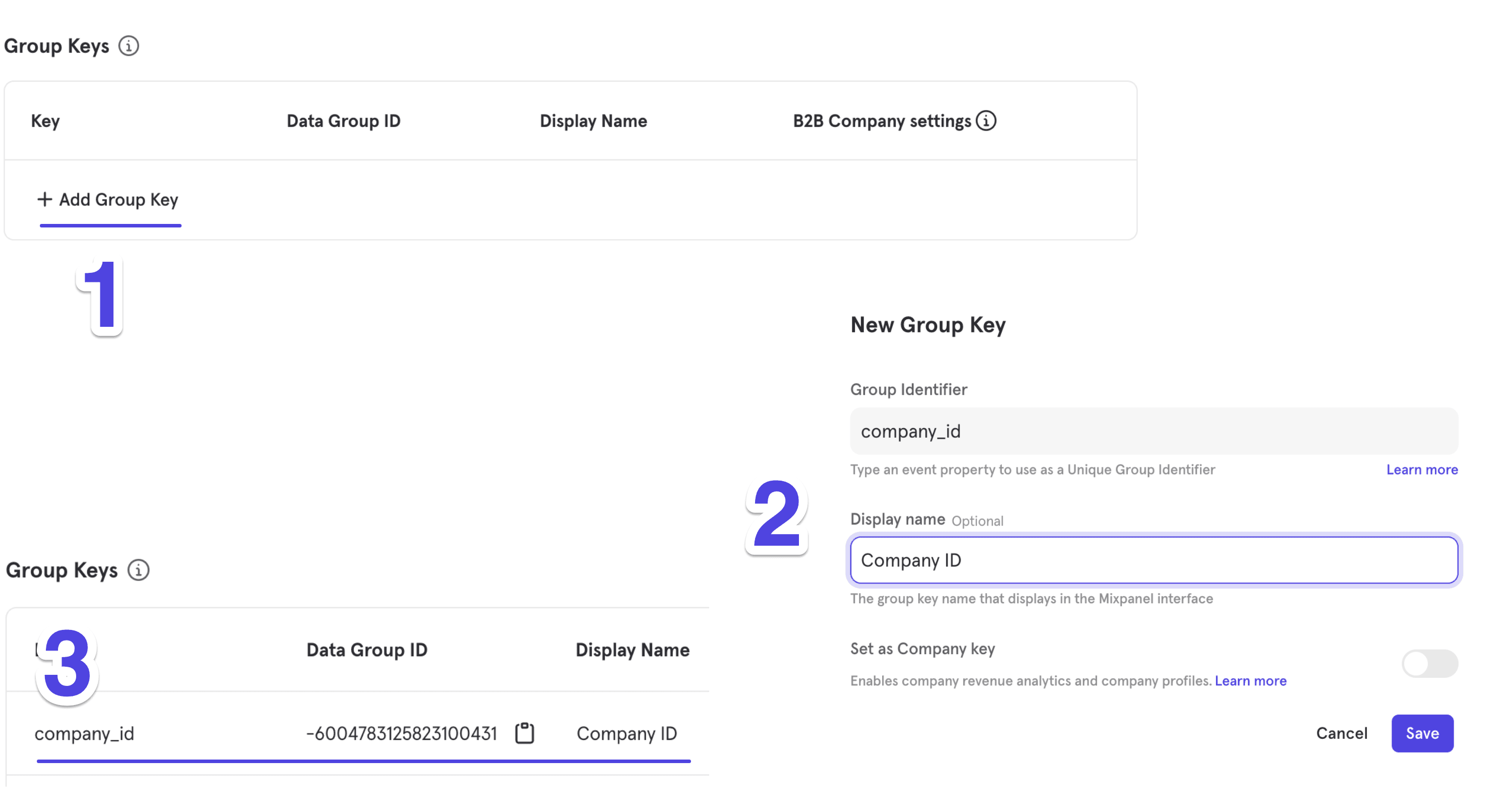
Once you hit save, a new row will appear in the Group Keys section with a new group ID (an ID autogenerated on our end, required for queries). The setup process takes a few minutes, so recently ingested data just after the group key is created might not be associated to a group during this time.
Setup B2B Company Key
- Choose which group key will be used as the B2B Company Key. This is the key for which Company Profiles (B2B Company Analytics) will be generated.
- Specify the property that should be referenced as the Company name (identifier) throughout the Mixpanel interface.
You can change which group key should be used as the Company Key. To change, first unset the current group key set as Company Key in the project settings, and then set a new group key as the Company Key.
Tracking events for a Group
By default, event data is tracked at a user level, and the association of that event to a group (or multiple groups) depends on: 1) the group key already being defined in project settings AND 2) that the event has the group key(s) in it with its associated values.
To better illustrate the process with an example, if you have an anonymous user triggering an event, authenticating, and then triggering other events, you may have a timeline like the picture below:
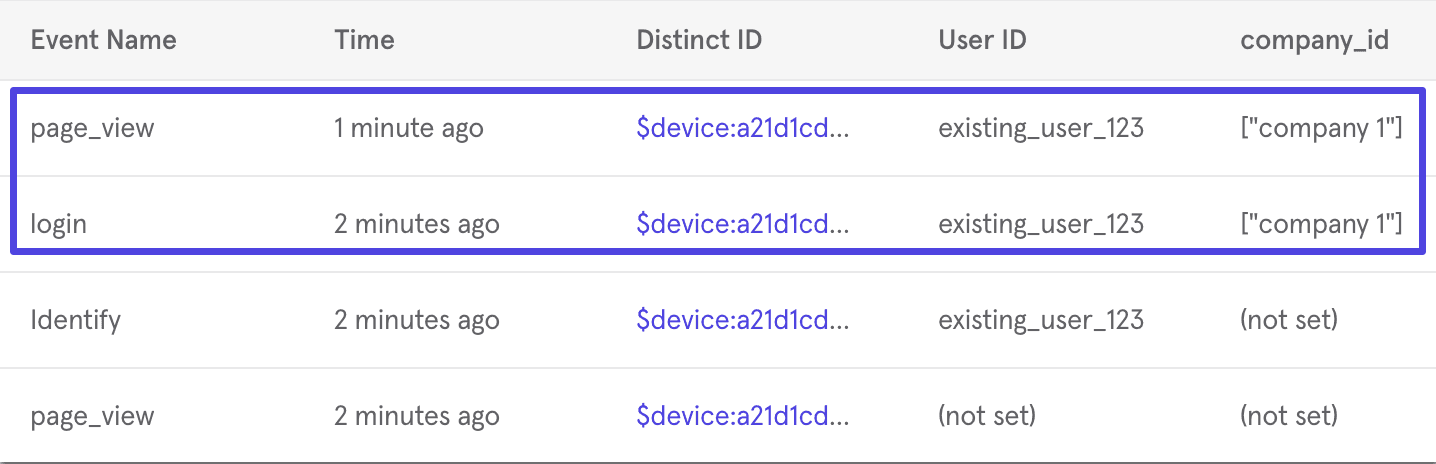
While the pre and post authentication events are tied to the user via ID merge, only events ingested with the group key in it (in this case company_id) would be associated with the group. In this timeline, the journey of the user starts with the initial page_view event, but the journey of the group starts with the login event.
The group key(s) and their value should be present in every event you want associated with the group (much like the ID of a user). In our client-side libraries that support a form of local storage, we have convenience functions that allow you to store the group key(s) and values in the device so every event has that information (after it’s registered and before the user logs out).
mixpanel.track("page_view"); // event while anonymous
mixpanel.identify("existing_user");
mixpanel.add_group("company_id","company 1");
mixpanel.track("login"); //event after authentication and part of the group "company 1"Note this is just a convenience function; for server-side libraries, or if there’s no access to local storage, you can send the group key and value in every event tracked. Below you will see the same flow using python.
mp.track('$device:anoymous_id', 'page_view',{'$device_id':'anoymous_id'})
mp.track('existing_user', 'login',{'$device_id':'anoymous_id', '$user_id': 'existing_user', 'company_id': ['company 1']})
mp.track('existing_user', 'page_view',{'$user_id': 'existing_user', 'company_id': ['company 1']})
Attributing Events to Multiple Groups
An event can be attributed to multiple groups. The convenience functions cited above define the group key as a list of strings, so calling it with a value adds to an existing list in local storage, but when tracking manually, you can send a list of strings with each group the event should be associated to.
mixpanel.track("Some Event", { company_id: ["company 1", "company 2", "company 3"] });Up to 300 group keys may be assigned to an event. Any additional groups beyond that number are ignored.
Updating Group Profiles
To create or update a group profile, similarly to user profile operations, at least one (1) profile property must be set. A set operation for a group profile that does not exist would create said profile, while it would update an existing profile.
mp.group_set('company_id', 'company 1', {
    'Company Type': 'Analytics',
    'Company name': 'Mixpanel'
})
Upload Group Profiles Using the Users Report
It is possible to create Group Profiles by CSV upload as an alternative to the Groups API. Follow the instructions here to learn how to upload Group Profiles using the Users report.
SDK references for Groups
To view the setup guides for implementing Groups using the Groups API, follow the instructions connected to the SDK you are using, cataloged here.
- HTTP
- Javascript SDK
- iOS-Swift SDK
- iOS-Objective-C SDK
- Android SDK
- Java SDK
- Python SDK
- React Native SDK
- Ruby SDK
Add Group Key to User’s Profile
Adding <group_key>: <group_id> to user profiles connects user profiles to group profiles. This allows you to view user group profile properties when analyzing by Users in reports; for example, when creating user cohorts based on group profile properties.
This relationship is one-way, meaning that you cannot use user profile properties when analyzing by a Group in reports.
Because a user can be part of multiple groups within a group key, set the value of the user property as a list of string values, i.e., "company_id": ["1", "2"]
Warehouse Connector Implementation
When importing data through a Warehouse Connector:
Events: Map your group key columns in the “Map Columns” step. Ensure the column names match the group keys registered in Project Settings.
Group Profiles: Select “Group Table” as the source type. Set the “Group Key” to the group key you want to populate (e.g., company_id), and set the “Group ID” to the column that contains the unique identifier for each group.
Analysis
Once group keys are configured and events are flowing with group key properties:
- In Insights, Funnels, Retention, and Flows, use the metric selector to switch from counting by “Unique Users” to counting by your group (e.g., “Unique Companies”).
- You can mix metrics in a single Insights report — for example, one metric counting unique users and another counting unique companies.
- Group profile properties are available as filters and breakdowns when analyzing by the corresponding group (and user if group key is added to the user profile).
- User profile properties are available when analyzing by users, but not when analyzing by groups.
FAQ
Why are events missing from groups? The group key property must be present as an event property on an event in order to attribute them to a group profile.Having the group key present as a user profile property does not automatically attribute the events by that user to the group.
Mixpanel does not backfill historical data to groups before the group key was implemented. This means that Mixpanel is only able to attribute group data from the date that the group key was set up in your Project Settings. Historical events that contain the group key as an event property sent prior to the implementation of the group key in Project Settings will not be attributed to a group.
Can I use group profile properties when analyzing by users? Yes. Group properties are available as filters and breakdowns when analyzing by users. The reverse is not true — user properties are not available when analyzing by groups.
How do I export group profiles?
Use the Engage API endpoint to export Group Profiles by adding data_group_id in the data param of the request.
curl --request POST \
  --url https://eu.mixpanel.com/api/2.0/engage \
  --header 'Authorization: Basic <redacted>' \
  --header 'Content-Type: application/x-www-form-urlencoded' \
  --data 'filter_by_cohort={"id": <cohort_id_here>}' \
  --data data_group_id=<data_group_id_here>
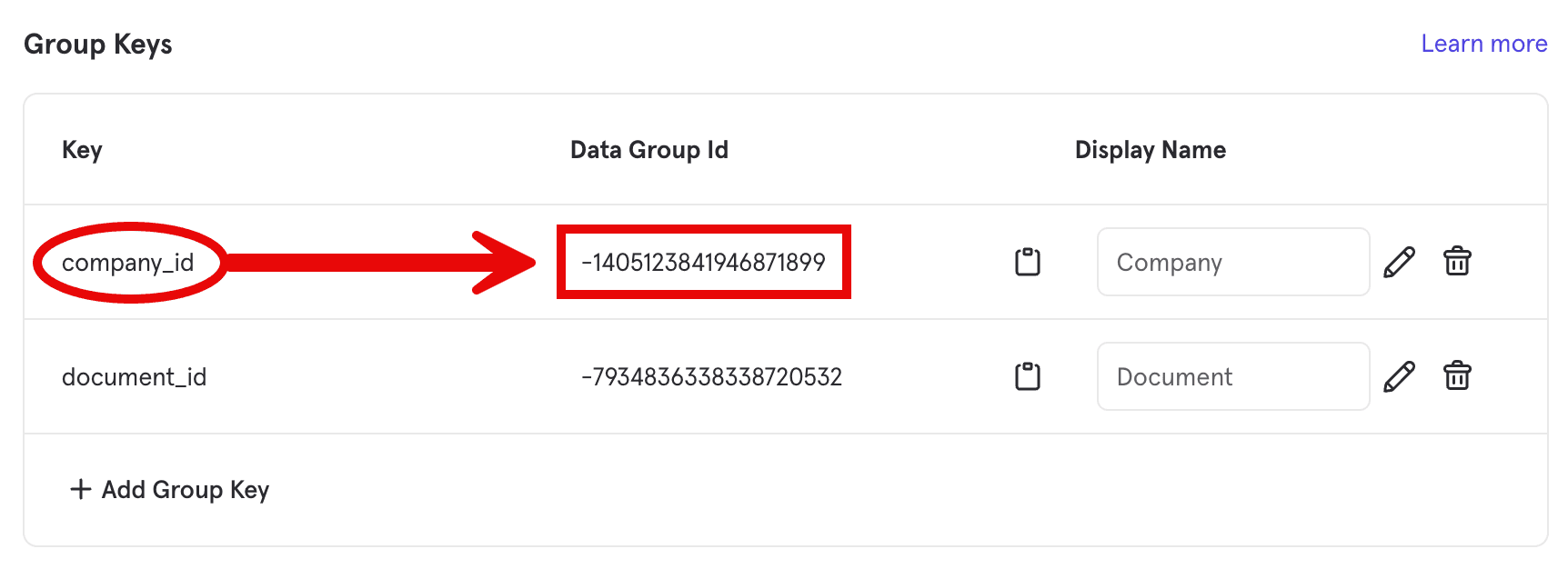
The <data_group_id> for the respective group key’s profile can be found under Group Keys within Project Settings:
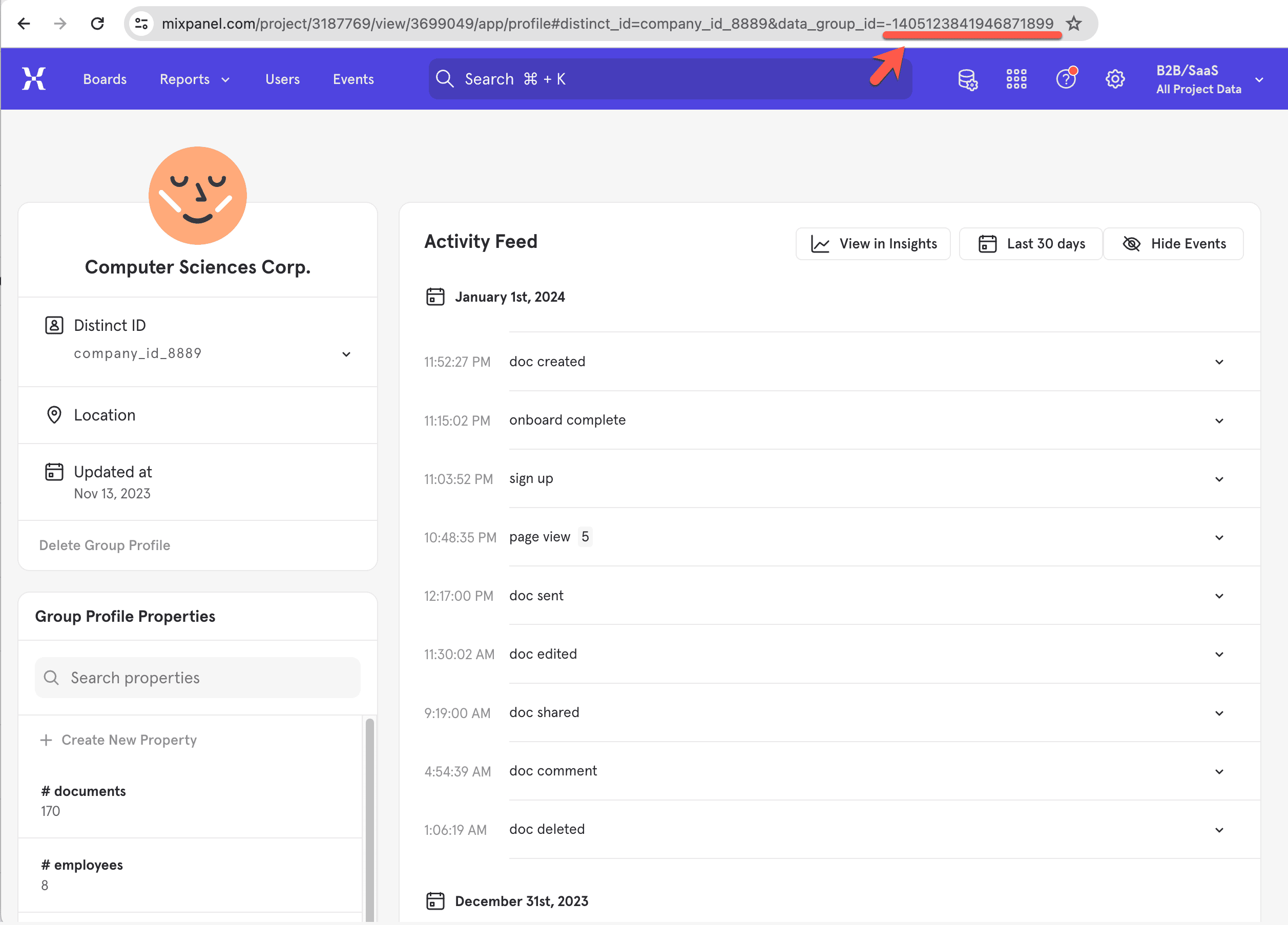
Alternatively, the <data_group_id> can also be seen as part of the URL of the Group Profile page:
https://mixpanel.com/project/<project_id>/view/<workspace_id>/app/profile#distinct_id=<distinct_id>&data_group_id=<data_group_id>
Here’s an actual example with data_group_id = -1405123841946871899:
What’s the difference between Group Analytics and Lookup Tables? Both augment events with metadata, but Group Analytics also indexes your events by the group key. This means you can do funnels, retention, and unique counts by the group key. Lookup Tables only support filtering and breakdowns — they do not support unique counting or sequential analysis by the join key.
How is B2B Company Analytics different than Group Analytics? Company Analytics is an advanced offering ‘within’ group analytics. Group Analytics focuses on the concept of there being multiple entities on which analysis can be done ‘independently’ (eg. user ID, restaurant ID, driver ID, company ID, etc.). Company Analytics is specific to B2B Companies where you are likely to have a user ID and company ID. Here we focus on the idea that users ‘belong’ to a company, and that company behavior is ‘dependant’ on user behavioral activity. For instance, in SaaS companies, the health of an account is determined by how active the users of that account are.
**What are the unique features of B2B Company Analytics? ** There are two features unique to B2B Company Analytics being set up, which aren’t available with the generic group analytics setup.
- Company Profiles - this is an advanced version of group profiles that shows you the health of a company
- Company Activation filters & breakdowns
Was this page useful?